Showing posts with label eclipse. Show all posts
Hướng dẫn cài đặt Eclipse trên Fedora

Nền tảng Eclipse (Eclipse Platform) được thiết kế để xây dựng các môi trường phát triển tích hợp (các IDE).
Nó có thể được dùng để tạo ra các giải pháp tính toán đa dạng, xuyên suốt từ đầu đến cuối cho nhiều môi trường thi hành.
Cài đặt Eclipse SDK 4.3.2 (Kepler) trên Fedora 20/19/18, CentOS/Red Hat (RHEL) 6.5/5.10
1. Cài đặt Sun/Oracle Java JDK 7
2. Tải về Eclipse SDK 4.3.2 (Kepler)
Tải về từ www.eclipse.org/downloads. Chọn bản 32 bit hoặc 64 tùy theo phiên bản fedora hiện hành.
3. Truy cập vào quyền root
4. Giải nén gói Eclipse (ví dụ: to /opt <đường_dẫn>)
5. Thêm quyền truy cập đến tất cả các file
6. Tạo đường dẫn Eclipse đến /usr/bin path
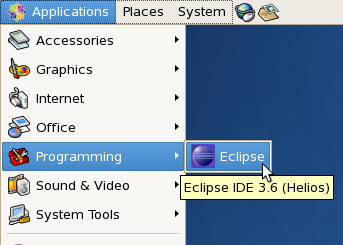
7. Tạo icon trên Gnome desktop
8. Chạy Eclipse 4.3.2
From command line use eclipse command
hoặc

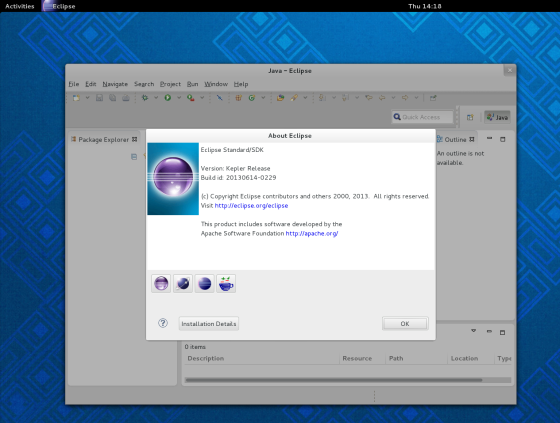
9. Giao diện Eclipse 4.3 , đang chạy trên Fedora 20 64-bit
Giải đáp thắc mặc:
Nếu bạn nhận được một lỗi như thế này:
Failed to load the JNI shared library /usr/java/jdk1.6.0_21/jre/bin/../lib/i386/client/libjvm.so
Or
/usr/java/jdk1.6.0_21/jre/bin/../lib/i386/client/libjvm.so: cannot enable executable stack as shared object requires: Permission denied
Or
/usr/java/jdk1.6.0_21/jre/bin/../lib/i386/client/libjvm.so: cannot enable executable stack as shared object requires: Permission denied
Gõ lệnh:
và thử lại.
Install Eclipse SDK on Fedora
Eclipse is an awesome IDE with tooling for various languages. It has a GTK+ UI that is much more accesible to regular programmers from a Windows environment than the tools traditionally used by FOSS hackers.
It was originally a (very) large body of code that IBM open-sourced. There is now a large community of companies and developers using and extending Eclipse.
It has its own Open Source license (the Eclipse Public Library, or EPL).

Eclipse is an awesome IDE with tooling for various languages. It has a GTK+ UI that is much more accesible to regular programmers from a Windows environment than the tools traditionally used by FOSS hackers.
It was originally a (very) large body of code that IBM open-sourced. There is now a large community of companies and developers using and extending Eclipse.
It has its own Open Source license (the Eclipse Public Library, or EPL).
Install Eclipse SDK 4.3.2 (Kepler) on Fedora 20/19/18, CentOS/Red Hat (RHEL) 6.5/5.10
1. Install Sun/Oracle Java JDK 7
2. Download Eclipse SDK 4.3.2 (Kepler)
Download suitable version from www.eclipse.org/downloads. This guide uses Eclipse Classic 4.3.2 version. Another popular versions are Eclipse IDE for Java EE Developers, Eclipse IDE for Java Developers and Eclipse for PHP Developers. Select also 32-bit or 64-bit version depending on your system.
3. Change root user
4. Extract Eclipse package (example to /opt directory)
5. Add read permissions to all files
6. Create Eclipse executable on /usr/bin path
7. Create Gnome desktop launcher
8. Start Eclipse 4.3.2
From command line use eclipse command
From Desktop menu Gnome 3 Eclipse 4.3.2
From Desktop menu Gnome 2 and Eclipse 3.6 (Helios)
9. Eclipse 4.3 screenshot, running on Fedora 19 64-bit
Troubleshooting
If you get something like following errors:
Failed to load the JNI shared library /usr/java/jdk1.6.0_21/jre/bin/../lib/i386/client/libjvm.so
Or
/usr/java/jdk1.6.0_21/jre/bin/../lib/i386/client/libjvm.so: cannot enable executable stack as shared object requires: Permission denied
Or
/usr/java/jdk1.6.0_21/jre/bin/../lib/i386/client/libjvm.so: cannot enable executable stack as shared object requires: Permission denied
Then do following:
and try again.
Subscribe to:
Posts
(
Atom
)